


The points are saved during the scan in real time. The files are automatically named as msr***.txt and msr***.dxf where *** is an increasing number. When the scan is finished, if you are in Combined Scanning then you can save and continue or terminate your session. You can enter the desired filename or keep the auto generated one.
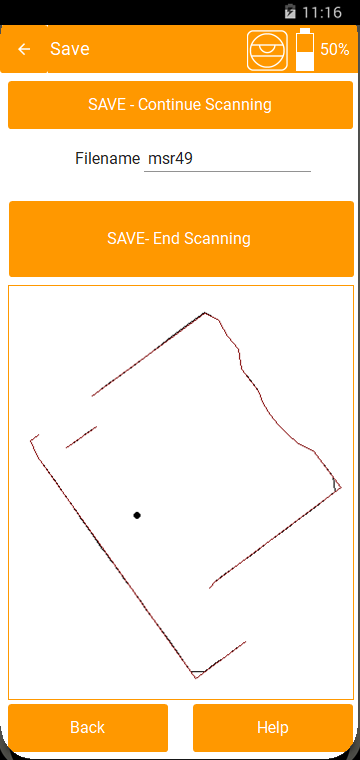
If you are in Auto Scan or if you tap SAVE-End Scanning the next screen appears and you have also the option to export the points at a CSV file ready to import in Archicad or other software.
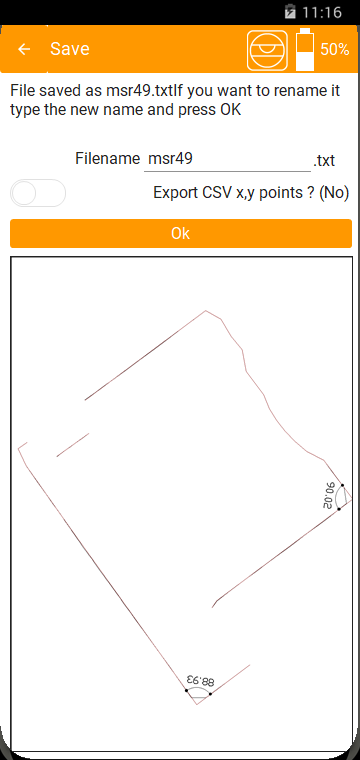
After you tap Ok the application prompts you to send the file if you want.
Up to Android 10 Files are stored in the folder documents/2dscanner and you can access them and without the application, via any File Manager or USB.
From Android 11 and more special permissions are needed. Asking for these permissions delivers bad user experience informing that personal files might be deleted and more scary warnings. So the files are stored in internal memory and can be accessed only from the File Manager of the application. If you update or uninstall the application these files will be lost. In general it is a good policy to share the file when the scan finishes. The application prompts you to do that.
If you click OK then you will return to the main menu and a sharing option dialog will appear.
DXF is not produced in real time. So if the scan ends unexpectedly you will find only a txt file. You can turn it to dxf via the File Manager.
TXT it is a text file and the data of all the measured points are saved in it, even those not present in graphics and DXF as they are hidden by the “Ignore Long Shots” and “Ignore Low Signal” filtering functions. Each line of the file will be relative to a point and will contain the following information separated by commas:
- Angular position. (360 degrees=32000)
- Angle in degrees. (It is not position/32000*360. It has a small correction added which is measured during calibration)
- Distance in mm with the offset added from the machine center.
- Pitch angle on degrees. (Inclination angle of the measurement with respect to the horizontal)
- Reading from laser in meters. The F is the fast method. There is the D method but takes too much time and the result is not better.
- The Signal. (the higher the value the less reliable the measurement)