


2dscanner will start a full Scan and will move you to the Auto Scanning screen.
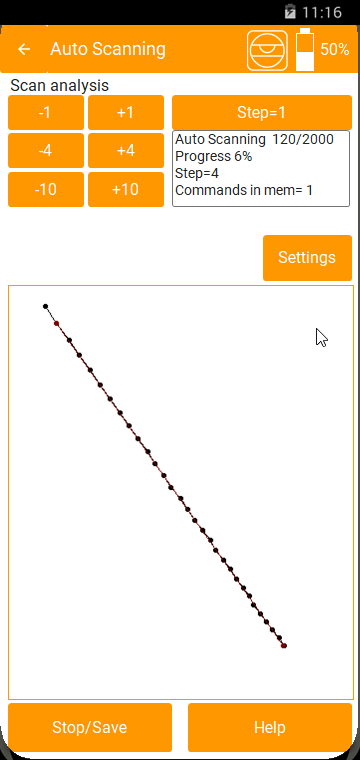
Auto Scanning Steps Buttons
The precision of the scan can be adjusted using the Auto Scanning Steps Buttons

Pressing any of these will increase or decrease the step angle.
If you press Steps=1 you will get immediately maximum precision of 1 step=0.18°.
Window Report
You can see the scanning steps in the small window report.
| Auto Scanning 8/2000 Progress 10% Steps=4 Commands in mem=0 |
The first line shows as in which position we are out of the 2000 points that 2dscanner can receive.
The second line turns this into percentage.
The third line is the current step angle. Keep in mind 2000 steps = 360°.
The 4th line, Commands in mem=0 informs us how many commands were received by 2dscanner and are note yet processed. In normal mode scanning and in high precision level the commands are sent very quickly from the device. Sometimes the Operating system cannot handle all the calculations in real time. When this happens you will see Commands in mem=5 or more. You will have to wait for this number to become 0. The application suspends other functions like Line Tracing and Dimensioning if this number goes high in order to have time to process the data.
Settings
You will be redirected to the Settings for display options.
Real Time Drawing Window

This window is better described in the Combo Scan help. Click the image and you will be redirected.
Scan Completed
Auto scan will finish when the end is reached and you will be prompted to the File Save screen. If there are any commands in memory you need to wait until they are processed.
If you want to stop earlier then click Stop/Save.
.