


Using this option, you can select two points that belong to straight lines and use them to combine the next scan.
Each sticker should have a straight line extending on its right side.
With this method, 30 cm of visible straight line is sufficient.
It is important to align the 2Dscanner before placing the stickers.
Otherwise, aiming at them later can become difficult. Please review the Adding Stickers documentation for placing stickers in optimal positions.
The procedure is as follows.
1.After you finish the first scan, Tap Next Scan. At this point your job will be automatically saved.
2. Tap the 2 Stickers button.
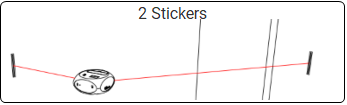
If exactly two stickers have already been placed, the application will automatically select them.
If no stickers are present, the application will prompt you to indicate them manually. Throughout the process, clear on-screen instructions will guide you every step of the way.
When more than two stickers are available, you’ll be asked to choose which ones to use.
3. Choose the sticker A and tap OK.

4. Choose the sticker B and Tap OK.
Once the stickers A and B are defined you can move 2Dscanner to the new position

5. Move 2Dscanner to the new position.
6. Tap the spirit level icon to check alignment at new position. Otherwise it is difficult to aim 2 stickers.
7. Aim the sticker A. You can rotate 2Dscanner from the app or by hand with the tripod. Do not turn just 2Dscanner with hand because the stepper will be forced and the known position will be lost.
8. Once you aim at the sticker, tap Get Distance.
The 2Dscanner will scan 12 points to determine the direction of the sticker’s line.
After that, it will automatically attempt to aim at the second sticker.
It should move close to the second sticker.
If it does not, then something is incorrect in the previous steps — the sticker may not be placed on a clear straight line, or you may have aimed at the wrong sticker.
9. Do some fine tune adjustments using the move buttons and aim as close as possible to the second sticker.

10. Tap Get Distance.
11. 2Dscanner will scan a few points and perform the alignment.
If no warning appears, the alignment is most likely correct.
If the app reports that it cannot find the sticker, it means that the distance AB from the first position does not match the new distance AB. This usually indicates that the wrong stickers were selected or that something else in the setup is incorrect.
12. Tap Accept at the next screen and the combination of the scans is completed.

Tips
Avoid placing stickers at opposite ends of the scan (antidiametric points), as this can reduce accuracy when linking scans.
If the combination fails you can load the last auto saved file from the file manager and try again.