• PRO
  • EDITOR
  • DEVICE
  • Contact Us
  • English
    • Français
    • Deutsch
    • Ελληνικά
    • Italiano
  • PRO
  • EDITOR
  • DEVICE
  • Contact Us
  • English
    • Français
    • Deutsch
    • Ελληνικά
    • Italiano
  • 2dscanner Pro App
  • Installation-Permissions
  • Enable automatic updates
  • Languages
  • Connect 2dscanner
    • Auto Scan
      • Full 360 Scan
      • Partial Auto Scan
      • Settings
    • Combo Scan
      • Tools
      • Smart Scan
      • Settings
        • Trace Lines Algorithm
        • Auto Dimensions
      • Real Time Drawing window
      • Combination of scans
        • Adding Stickers
        • 1 Sticker
        • 2 stickers
        • 1 Corner
        • 2 Corners
        • New Scan from Same Spot
      • File Save screen
    • Photos
    • File Manager
    • View drawingLevel
    • Tools
      • Firmware Upload for Android
      • Firmware Upload for iOS users
      • Spirit level calibration
    • Spirit Level
    • Surveying Tips

    Tools

    44 views 0

    From Combo Scan you can Tap the Tools button.
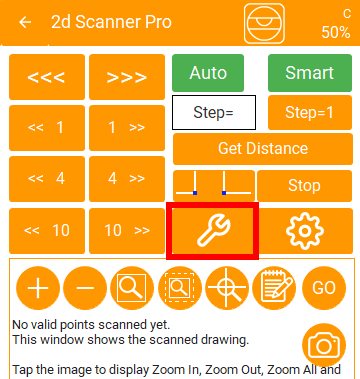
    The tools Screen appears.
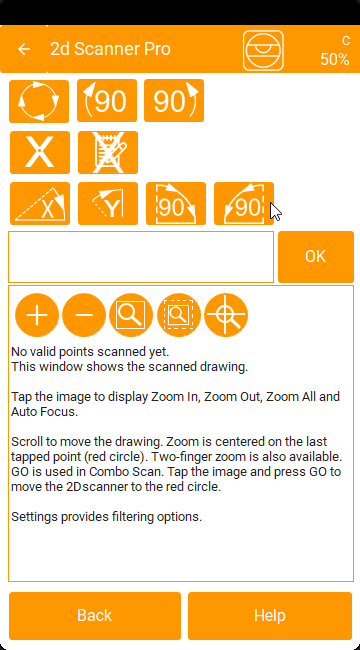

    The first 3 buttons are related to 2Dscanner rotation.

    The most important button here is the permanent move button.

    Tapping this button will put 2Dscanner in permanent rotation at the maximum speed. You can use this in order to check the path of the laser.


    The second row has the deletion buttons. Delete notes and points.

    Delete points.

    Tap this button to display the deletion instructions on the screen.
    Select the points you want to delete, then tap OK to confirm.
    You can select points in two ways:

    • Single tap to select individual points.
    • One-finger drag (scroll) to select multiple points.

    In this mode, a one-finger drag does not move the drawing — it works only as a selection tool.
    To move around the drawing, use a two-finger drag instead.


    Delete Notes

    Use this button to delete notes. Notes include stickers and photos.
    To select a note, tap close to the desired item.
    Tap a selected note again to deselect it.
    When you have finished selecting, tap OK to confirm deletion.


    Drawing Rotation

    These buttons allow you to rotate the drawing as desired on the screen.

    • For the first two buttons, you must first select a line.
      After selecting the line, tap OK and it will become parallel to the X or Y axis.
    • The last two buttons rotate the entire drawing by 90°.

    During the selection process, instructions are displayed in the text box to guide you.

    Related Articles
    • Enable automatic updates
    • Photos
    • Spirit level calibration
    • Firmware Upload for iOS users
    • Firmware Upload for Android
    • 2 Corners

    Didn't find your answer? Contact Us

    Previously
    Combo Scan
    Up Next
    Smart Scan
    Copyright 2024 2D SCANNER. All Rights Reserved
    • English
    • Français (French)
    • Deutsch (German)
    • Ελληνικά (Greek)
    • Italiano (Italian)