


Partial Auto Scan will allow the user to scan only a section. In order to define the start and end angle the next screen appears. This is the Set Start/End Angle screen.
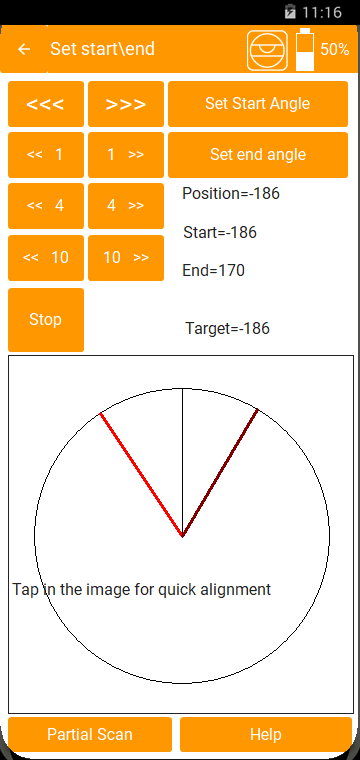
Quick Move Buttons

The buttons on the top left are for permanent move. When you press these 2dscanner will start rotating until the button is released. The rotation of 2dscanner happens always respectfully to certain acceleration and deceleration settings. So it will stop smoothly and return back to the exact position where the spot was when the button was released. This is implemented in order to avoid tilting even if you use a lightweight tripod. The preservation of the initial position is very important in order to get a quality measurement.
Precise Move Buttons

These Buttons rotate 2dscanner at certain steps and help you aim with precision. 1 step equals to 0.18°. 2000 steps is the full circle.
Stop
Stops the rotation at once.
The quick alignment image

You can move 2dscanner by touching anywhere in this circle. The 0 position is always vertical and it is a straight line. The Real position is the dashed line. So you can use it for faster approach near the desired spot.
Set Start Angle
When the spot is at the start of your scan region press this button. 2dscanner always scans clockwise. Keep that in mind.
Set End Angle
When the spot is at the end of your scan region press this button. If the End Angle is lower than the start angle they will be switched. It is better to define first the End Angle and then the Start Angle. This way the scan will start immediately without the need of rotating to the Start angle.
Labels Position and Target
The Real Position and the Target Position are shown in these text fields. You can press Stop anytime between rotations. The space between these is reserved for future use.
Partial Scan
Once you press Start Scan the scan will begin and the screen of live Scanning will appear. The description of live Scanning is the same with Full 360 Scan.
Scan Completed
Auto scan will finish when the end is reached and you will be prompted to the File Save screen.If there are any commands in memory you need to wait until they are processed.
If you want to stop earlier then click Stop/Save.