• PRO
  • EDITOR
  • DEVICE
  • Contact Us
  • English
    • Français
    • Deutsch
    • Ελληνικά
    • Italiano
  • PRO
  • EDITOR
  • DEVICE
  • Contact Us
  • English
    • Français
    • Deutsch
    • Ελληνικά
    • Italiano
  • 2dscanner Pro App
  • Installation-Permissions
  • Enable automatic updates
  • Languages
  • Connect 2dscanner
    • Auto Scan
      • Full 360 Scan
      • Partial Auto Scan
      • Settings
    • Combo Scan
      • Tools
      • Smart Scan
      • Settings
        • Trace Lines Algorithm
        • Auto Dimensions
      • Real Time Drawing window
      • Combination of scans
        • Adding Stickers
        • 1 Sticker
        • 2 stickers
        • 1 Corner
        • 2 Corners
        • New Scan from Same Spot
      • File Save screen
    • Photos
    • File Manager
    • View drawingLevel
    • Tools
      • Firmware Upload for Android
      • Firmware Upload for iOS users
      • Spirit level calibration
    • Spirit Level
    • Surveying Tips

    2 Corners

    287 views 0

    This is the most precise method for aligning scans. Even corners with short line segments can be used. But lines with less than 5 points cannot be used.

    During the procedure, the application shows detailed instructions as always.

    The procedure is as follows :

    1. Tap Next Scan

      Next Scan

      2. Tap 2 Corners

        3. In the next screen you see all the available points for selection.
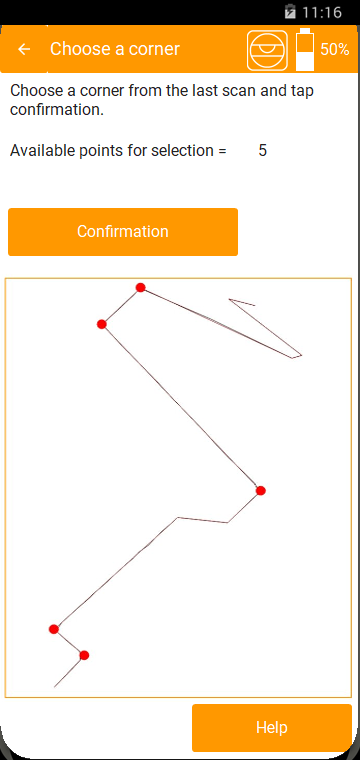

        4. Tap the corner A you want to use.

        5. Tap Confirmation

        6. Tap the corner B you want to use.

        It does not matter whether corner B is to the left or to the right of corner A.There is no problem if the two corners are on opposite sides relative to the new 2Dscanner position—this limitation applies only when using two stickers.

        7 .Tap Confirmation

        8. The application now prompts you to move the 2Dscanner to a new position.
        So move it and point the laser at the left start of corner A.

        Check the image for a better understanding of the left start of a corner. For example if the point is the one in the red circle you must aim the laser spot at the point indicated by the black arrow. The first element that will be scanned must be the corner A.

        9. Once ready, tap Get Distance.

        The 2Dscanner will scan the first corner.
        Once detected, you can skip the rest by tapping on the green button.


        But it’s better to let it scan as much as possible.
        It will try to scan points up to the same length as before.
        If it finds a point off the line, it stops.

        Automatically, the 2Dscanner will move to the left start of corner B.

        10. Adjust the aim if needed and tap Get Distance.

        Once the second corner is detected,
        the scans will be aligned and you will be asked to confirm.

        Related Articles
        • Tools
        • Enable automatic updates
        • Photos
        • Spirit level calibration
        • Firmware Upload for iOS users
        • Firmware Upload for Android

        Didn't find your answer? Contact Us

        Previously
        1 Corner
        Up Next
        New Scan from Same Spot
        Copyright 2024 2D SCANNER. All Rights Reserved
        • English
        • Français (French)
        • Deutsch (German)
        • Ελληνικά (Greek)
        • Italiano (Italian)